InquiryDQB
Notice · Wonder · Investigate · Explain

Let your students’ questions drive the learning

InquiryDQB is a live driving question board for your classroom. Students share what they notice and wonder from any device. Together you sort their questions, decide what to investigate and return to the board as understanding grows.
Your teacher’s screen shows the code and a QR code.

inquirydqb.io/Teacher
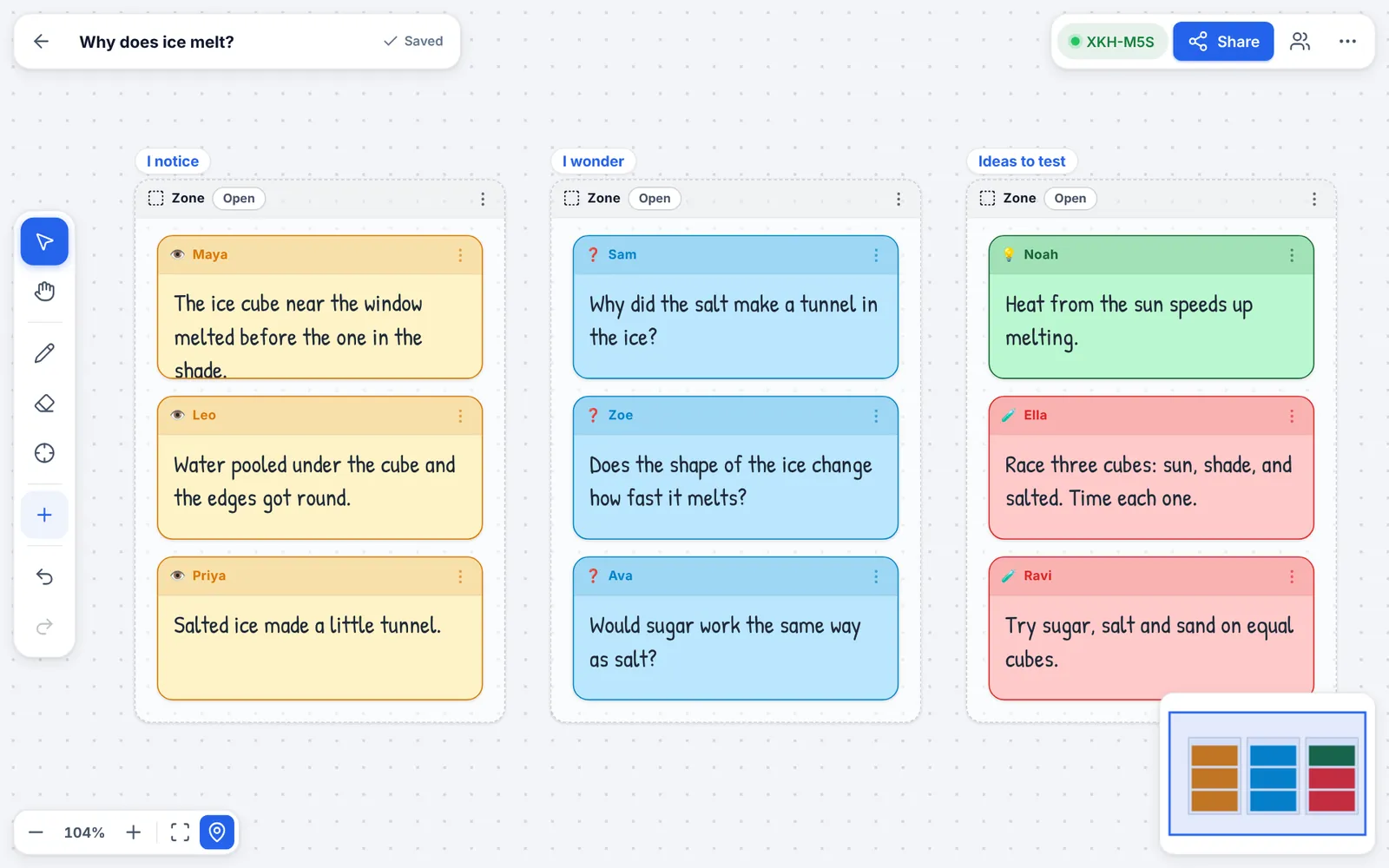
Teacher board for the driving question “Why does ice melt?”, with three zones (I notice, I wonder, Ideas to test) filled with colour-coded student notes
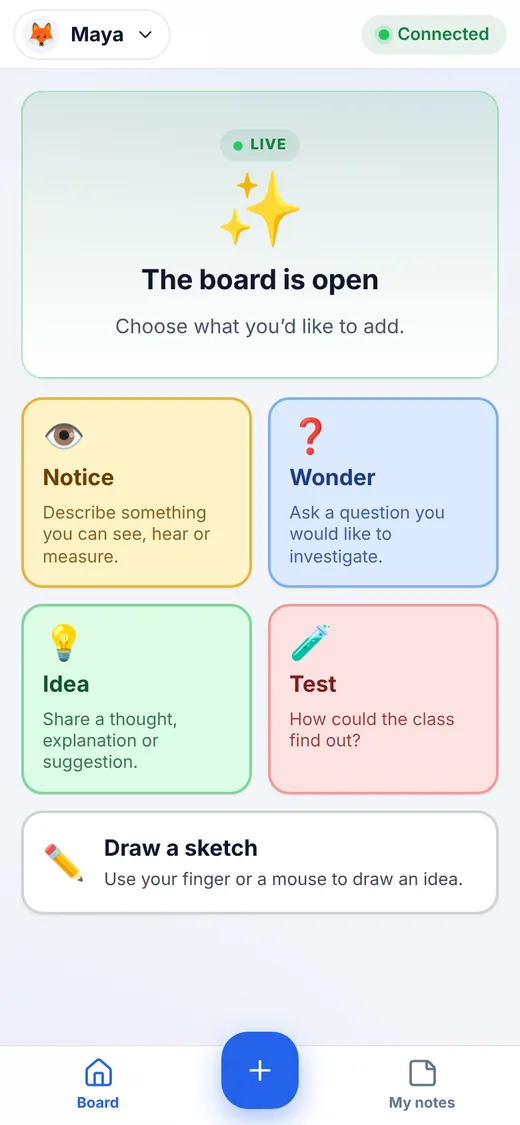
Student phone showing buttons to add a notice, wonder, idea, test or sketch
The inquiry cycle

Students’ questions become the roadmap for the unit

A driving question board (DQB) collects the questions students raise about a puzzling phenomenon and keeps them in view while the class investigates, explains and asks new questions. InquiryDQB gives each step of that cycle its own tools.

  1. Notice

    Observe the phenomenon

    Students record what they see, hear or measure, in words or a quick sketch, before anyone tries to explain it.

    • Notice notes
    • Sketches
  2. Wonder

    Ask questions

    Every student adds questions from their own device, so the board reflects the whole class and not just the first hands up.

    • Wonder notes
    • Hide names
  3. Organise

    Sort and prioritise

    Cluster questions into themes to find the big ideas, then let the class vote or rank to choose what to investigate first.

    • Zones
    • Vote
    • Rank
  4. Investigate

    Plan and test

    Students propose explanations and ways to test them, then send predictions and measurements into live class polls and graphs.

    • Idea notes
    • Test notes
    • Polls
    • Live graphs
  5. Explain

    Make sense together

    Build arguments from claim, evidence and reasoning, respond to each other’s ideas, and draw one consensus model as a class.

    • CER builder
    • Discuss
    • Consensus model
  6. Revisit

    Return to the board

    End lessons with an “I learned / I wonder” exit ticket, move answered questions aside and add new ones. Then the cycle starts again.

    • Exit tickets
    • Saved boards
How it works

Launch a question board in minutes

No rosters, setup or student logins, so the lesson starts with thinking, not logging in.

Open a board and share the code

Present your phenomenon, then start a blank board or a routine like See-Think-Wonder. A short code and QR code appear for your class.

Class code
K7Q-2XR

Students join from any device

They scan the QR code or type the code on a phone, tablet or Chromebook, pick an avatar and a first name, and start posting what they notice and wonder.
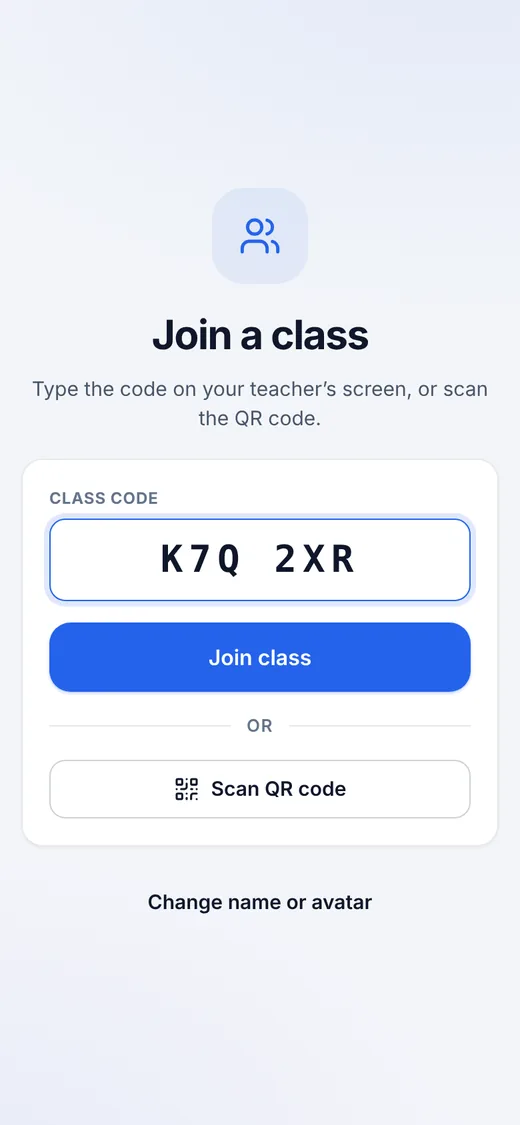
Student join screen with a class code field

Sort, vote and investigate

Notes appear on your board as students post them. Cluster them into themes, then let the class vote on which question to investigate first.
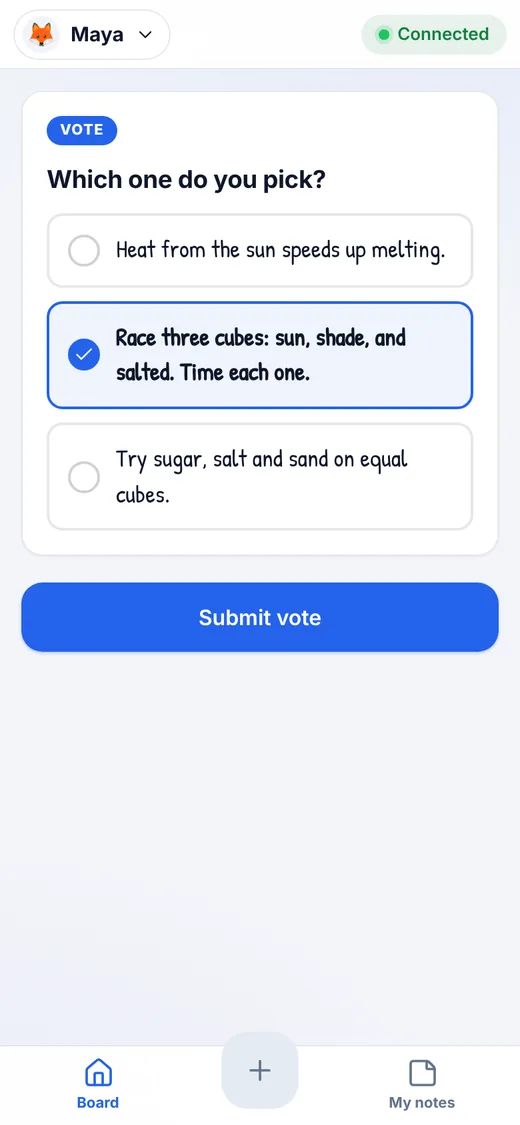
Student choosing which idea to test in a class vote
Features

Tools that keep every student thinking

A whiteboard-style canvas for your projector and a simple, phone-friendly app for every student.

Sentence starters built in

Each note type opens with a prompt such as “I wonder…” or “We could test this by…” and a short hint, so students know what a good observation or question looks like.

Every voice on the board

Students who rarely speak up can still be heard. Hide names to lower the stakes, or approve notes before they appear on the board.

Discussion that builds on ideas

Open a discussion on any set of notes and students respond to each other’s thinking with feedback, questions and connections.

Small-group work

Sort students into colour groups and open a zone that only one group can post to, or give a group a breakout board of its own.

You set the pace

Lock or open the board, run a class timer, spin to pick who shares next, pause a student, or invite a co-teacher to help from a second device.

One board for the whole unit

Boards save automatically, so your driving question board can grow lesson by lesson. Export a picture or a printable outline for the classroom wall.

Thinking routines

Start from a routine your class knows

Built-in templates lay out the zones for you, ready to launch a unit, surface prior knowledge or structure a debate.

See-Think-Wonder

  • I see
  • I think
  • I wonder

Students separate what they observe from what they think it means, then ask what they still wonder.

K-W-L Chart

  • Know
  • Want to know
  • Learned

Surface prior knowledge at the start of a unit, then come back at the end to record what the class learned.

Frayer Model

  • Definition
  • Characteristics
  • Examples
  • Non-examples

Build a deep understanding of a key term by defining it, listing its characteristics and sorting examples from non-examples.

Venn Diagram

  • Topic A
  • Both
  • Topic B

Compare two ideas, organisms, texts or systems and find what they have in common.

Four Corners

  • Strongly agree
  • Agree
  • Disagree
  • Strongly disagree

Students take a position on a claim, back it up with evidence and listen to the other side.

Compass Points

  • Need to know
  • Worrisome
  • Excited
  • Stance

Weigh up a new idea or proposal from four directions before the class decides where it stands.

Have a layout you use every unit? Select it and choose Save as template from the ⋯ menu to reuse it on any board.

Works where you teach

Ready for any classroom

No accounts, rosters or installs for you or your students.

For the teacher

A laptop, Chromebook or tablet with a current Chrome, Edge, Safari or Firefox. Keep the board tab open during the lesson.

For students

Any phone, tablet or computer with a modern browser. Students scan the QR code or type the class code to join.

Network

Everyone needs internet access, and peer-to-peer (WebRTC) traffic can’t be blocked by the school filter. Most networks are fine.

Student work stays with you

Notes travel straight from students’ devices to yours, and boards are saved in your browser rather than a cloud account.

FAQ

Good questions

What is a driving question board?
A driving question board (DQB) is a shared display of the questions students ask about an anchoring phenomenon or problem. The class sorts the questions into themes, uses them to plan investigations, and returns to the board throughout the unit to track what they have figured out and what they still wonder. It’s a core routine in phenomenon-based science and project-based learning.
Is it only for science?
No. It suits any lesson that starts from curiosity: a primary source in history, a data set in maths, a poem in English or a design challenge in technology. Templates such as K-W-L, Frayer Model, Venn Diagram and Four Corners work in every subject.
How do I use one board across a whole unit?
Boards save automatically on your device, so you can open the same board every lesson. Add a zone for questions the class has answered and move notes into it as understanding grows, then add the new wonders that come up. Export a picture or printable outline whenever you want a copy for the wall.
Can students ask questions without their name on them?
Yes. Turn off Show student names in the class panel. New notes then appear on the board without a name, and students see “Your name won’t be shown” as they write, which helps them share questions they might not ask out loud.
Can students see each other’s notes?
Only what you choose to show. Students see their own notes and the activity you launch, such as the notes to vote on or discuss. They never receive the whole board.
Do students need accounts or email addresses?
No. Students scan the QR code or type the class code, then choose an avatar and a first name or nickname.
What happens if my internet drops or I close the tab?
Your board is saved on your device automatically. Students see a “Reconnecting” banner, and notes they write in the meantime are delivered as soon as you’re back. Reopen the board and the class code stays the same until you choose a new one.
Where is student work stored?
On your devices. Notes travel from each student’s device to yours over encrypted connections, your board is saved in your browser, and students keep a copy of their own notes. There’s no InquiryDQB account or database. To help devices find each other, free public connection services see technical details such as IP addresses and the class code, but they can’t read notes, names or boards. Schools can run their own: see Hosting InquiryDQB yourself.
Why can’t some students connect?
Most school networks work fine. If a student is stuck on “Connecting…”, check the code, make sure your board tab is open, and try another network or a phone hotspot: some filters block peer-to-peer (WebRTC) traffic. Schools can also run their own connection service.
Is it free?
Yes. InquiryDQB is free for teachers and students, with no subscriptions, ads or premium tier.

What will your students wonder next?

Bring your next phenomenon to the board. It’s free, and your class can join from any device.

Start a board